Apple
PDF::API2, Preview.app, kanji fonts, and me
I’d love to know why this PDF file displays its text correctly in Acrobat Reader, but not in Preview.app (compare to this one, which does). Admittedly, the application generating it is including the entire font, not just the subset containing the characters used (which is why it’s so bloody huge), but it’s a perfectly reasonable thing to do in PDF. A bit rude to the bandwidth-impaired, perhaps, but nothing more.
While I’m on the subject of flaws in Preview.app, let me point out two more. One that first shipped with Tiger is the insistence on displaying and printing Aqua data-entry fields in PDF files containing Acrobat forms, even when no data has been entered. Compare and contrast with Acrobat, which only displays the field boundaries while that field has focus. Result? Any page element that overlaps a data-entry field is obscured, making it impossible to view or print the blank form. How bad could it be? This bad (I’ll have to make a screenshot for the non-Preview.app users…).
The other problem is something I didn’t know about until yesterday (warning: long digression ahead). I’ve known for some time that only certain kanji fonts will appear in Preview.app when I generate PDFs with PDF::API2 (specifically, Kozuka Mincho Pro and Ricoh Seikaisho), but for a while I was willing to work with that limitation. Yesterday, however, I broke down and bought a copy of the OpenType version of DynaFont’s Kyokasho, specifically to use it in my kanji writing practice. As I sort-of expected, it didn’t work.
[Why buy this font, which wasn’t cheap? Mincho is a Chinese style used in books, magazines, etc; it doesn’t show strokes the way you’d write them by hand. Kaisho is a woodblock style that shows strokes clearly, but they’re not always the same strokes. Kyoukasho is the official style used to teach kanji writing in primary-school textbooks in Japan. (I’d link to the nice page at sci.lang.japan FAQ that shows all of them at once, but it’s not there any more, and several of the new pages are just editing stubs; I’ll have to make a sample later)]
Anyway, what I discovered was that if you open the un-Preview-able PDF in the full version of Adobe Acrobat, save it as PostScript, and then let Preview.app convert it back to PDF, not only does it work (see?), the file size has gone from 4.2 megabytes to 25 kilobytes. And it only takes a few seconds to perform this pair of conversions.
Wouldn’t it be great to automate this task using something like AppleScript? Yes, it would. Unfortunately, Preview.app is not scriptable. Thanks, guys. Fortunately, Acrobat Distiller is scriptable and just as fast.
On the subject of “why I’m doing this in the first place,” I’ve decided that the only useful order to learn new kanji in is the order they’re used in the textbooks I’m stuck with for the next four quarters. The authors don’t seem to have any sensible reasons for the order they’ve chosen, but they average 37 new kanji per lesson, so at least they’re keeping track. Since no one else uses the same order, and the textbooks provide no support for actually learning kanji, I have to roll my own.
There are three Perl scripts involved, which I’ll clean up and post eventually: the first reads a bunch of vocabulary lists and figures out which kanji are new to each lesson, sorted by stroke count and dictionary order; the second prints out the practice PDF files; the third is for vocabulary flashcards, which I posted a while back. I’ve already gone through the first two lessons with the Kaisho font, but I’m switching to the Kyoukasho now that I’ve got it working.
Putting it all together, my study sessions look like this. For each new kanji, look it up in The Kanji Learner’s Dictionary to get the stroke order, readings, and meaning; trace the Kyoukasho sample several times while mumbling the readings; write it out 15 more times on standard grid paper; write out all the readings on the same grid paper, with on-yomi in katakana and kun-yomi in hiragana, so that I practice both. When I finish all the kanji in a lesson, I write out all of the vocabulary words as well as the lesson’s sample conversation. Lather, rinse, repeat.
My minimum goal is to catch up on everything we used in the previous two quarters (~300 kanji), and then keep up with each lesson as I go through them in class. My stretch goal is to get through all of the kanji in the textbooks by the end of the summer (~1000), giving me an irregular but reasonably large working set, and probably the clearest handwriting I’ve ever had. :-)
Boot Camp/Parallels
I have (shudder) Microsoft Windows running on my Mac Mini now, both virtualized and dual-boot, thanks to this week’s most interesting betas: Boot Camp and Parallels.
Both have significant potential. I have some Windows-only software that drives useful hardware devices, like my GPS and my camera, and the full dual-boot solution guarantees that they’ll work correctly. Inconvenient, but less so than trying to keep an actual Windows box around.
I also have some old, relatively lightweight Windows software that I’d like to use occasionally, like MasterCook and Streets & Trips. Those are usable on a G4 running Virtual PC, so a real virtualizer is more than sufficient, and preferable for handing off things like printing to the host OS.
The people who think this is “the beginning of the end” for Apple and OS X are smoking their socks (or less savory garments). This is the wafer-thin mint that has the potential to explode the current limits on home and corporate Mac deployment. Hell, just the dynamic partitioning that Apple included in the Boot Camp beta points to a bright future.
Last year I bought my dad a G5 iMac, to try to wean him away from his endless Windows problems. He has just enough third-party crapware that I have to send him a copy of Virtual PC to complete the job. If 10.5 ships with real virtualization, I’ll gleefully swap that iMac out for a new one and call it a bargain. Even the dual-boot may be enough, with its near-certain compatibility with every little USB gadget.
Update: forget “lightweight”; I was using Windows Media Player to watch large movie trailers in my Parallels session last night. The mouse is a bit jumpy, apparently related to propagating cursor changes between the Windows and Mac environments, but that’s the only visible performance issue. Even without taking full advantage of the Intel Core chip’s virtualization (off by default on the Mini, no hints on how to turn it on yet), it’s darn quick for 2D apps.
Short Review: Nisus Writer Express
If your (Mac-only) word-processing needs fit within Writer Express‘s feature list, the generally sensible UI will make it a superior alternative to Word. Within its limitations, it’s an excellent, useable program.
However, if you need table support that’s better than an ancient version of Netscape, real Word interoperability, or precision layout tools, look elsewhere. For now, at least; they’re working hard to improve the product.
Note to people with fond memories of the Mac OS Classic Nisus Writer: Express implements a subset of the old features, along with a bunch of new ones.
Dear Adobe,
While preparing a faithful, high-resolution copy of the Mac OS X kernel-panic screen (to submit a patch to XScreenSaver’s BSOD module, now that JWZ has gotten it mostly working as a native Mac screen-saver), I ran into several problems. First, the result of my efforts:
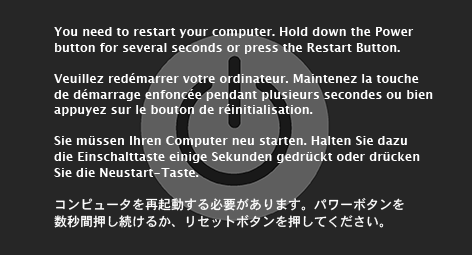
Now for the problems. I started out working in Photoshop, mostly because I hate Illustrator and wish CorelDRAW 4 had been stabilized and ported to every useful platform, but quickly gave up. Even for a simple graphic like this, it’s just annoying to work without real drawing tools.
The power button took about fifteen seconds in Illustrator, leaving me to concentrate on the text (12.2/14.6pt Lucida Grande Bold and 13/14.6pt Osaka, by the way). The Japanese version took the longest, obviously, especially with the JPEG artifacts in my source image.
Mind you, the above PNG file wasn’t exported from Illustrator, because all of my attempts looked like crap. The anti-aliasing made the text too fuzzy. To produce a smooth background image with crisp text, I had to manually transfer the two layers to Photoshop. I exported the background graphic at 300dpi without anti-aliasing, resized it in Photoshop using the Bicubic Sharper mode, then created a text field, pasted in the text, set the anti-aliasing mode to Sharp, and nudged it into the correct position.
The real fun came when I wanted to take the text I’d so painstakingly entered and paste it into another application.
I couldn’t.
Selecting the text in Illustrator CS2 and copying it left me with something that could only be pasted into Photoshop or InDesign. Fortunately, InDesign was written by people who think that text is useful, and after pasting it there I could copy it again, ending up with something that other applications understood. See?
You need to restart your computer. Hold down the Power button for several seconds or press the Restart Button.
Veuillez redémarrer votre ordinateur. Maintenez la touche de démarrage enfoncée pendant plusieurs secondes ou bien appuyez sur le bouton de réinitialisation.
Sie müssen Ihren Computer neu starten. Halten Sie dazu die Einschalttaste einige Sekunden gedrückt oder drücken Sie die Neustart-Taste.
コンピュータを再起動する必要があります。パワーボタンを数秒間押し続けるか、リセットボタンを押してください。
Dear Apple,
It’s nice that I can walk into one of your retail stores, purchase a .Mac kit, and use the included authorization code to renew someone’s .Mac account.
Well, it would be nice if I hadn’t just tried it for my father’s account, and had the code rejected. The best part was that, from the standard account renewal screen, you didn’t show the reason why it was rejected, and I had to use the special URL to find out that you think that activation code has already been used.
Even that wouldn’t be so bad if you didn’t have 48-hour response time for the email-only .Mac support, going so far as to prevent even the Apple employees at your retail store from reaching you directly.
In other words, you’ve given me three choices:
- wait another 24 hours to see if you respond, either to me or to the Apple Store employee who also tried to contact you.
- buy another retail box and hope for the best.
- add a credit card to his account, renew, and then make sure I remove the credit card.
Meanwhile, of course, I blog.
Update: I just got a form letter:
Apple accepts cancellations of .Mac memberships only during the first 30 days of membership.
At your request, Apple can cancel your .Mac account XXXX@mac.com and issue a replacement activation key. You may then reactivate account XXXX@mac.com with the replacement key.
This makes slightly less than no sense.
Update: Another day, another form letter, near-identical contents. No matter how clearly and simply I stated the problem, they didn’t get it. So I printed out the email exchanges, walked back down to the Apple Store, watched the manager wonder what the hell they’ve been smoking, and got a new, working activation key. Problem solved, no thanks to the completely inept .Mac support team.
I’ve gotten better customer service from stray dogs. At least they understood a few simple phrases in English.
Update: Glee! They sent me a survey on “how satisfied were you with your .Mac email support?”
Buried coolness in OS X Tiger
Demonstrating once again that most of the really good stuff in the Tiger OS release was hidden under the hood, I present textutil:
textutil -inputencoding EUC-JP -encoding UTF-8 -convert rtf foo.html
This command-line utility exposes the extensive character-set and file-format conversion that’s built into Cocoa. Very cool.
The first step is proving you have a problem...
So, it initially looked as if swapping the DIMMS around and reseating everything fixed my PowerBook. Paranoia is an old friend, however, so I decided to do some more testing before trusting it.
First up, TechTool Deluxe, a piece of software that Apple gives you when you buy AppleCare support. I ran the full suite of tests half a dozen times, with no errors.
Next up, World of Warcraft. I booted normally, logged in and had one of my characters stand in the middle of the busiest city, opened up the Activity Monitor, and… success! Or, more precisely, failure. It locked up good and hard, filling the screen with garbage.
Packed it up, made a support appointment at the Apple Store, walked over at the appointed time, waited 40 minutes for someone to get to me, and then spent the next 40 minutes proving that the problem really existed.
Standard diagnostic tools passed with flying colors. The tech’s random mix of apps worked just fine. We ended up testing each DIMM separately, loading up memory and CPU with World of Warcraft, QuickTime Player (random music video set to loop), and VLC (random VOB file set to loop). With the DIMM that I initially had figured was the good one, this produced several crashes within five minutes. The other DIMM worked fine, and in fact it’s been running for about half an hour now back in my office.
They’ll have a replacement DIMM for me in a few days, and meanwhile I’m going to keep stressing the machine to make really sure there’s nothing else wrong. Then I’ll migrate back from my G3 iBook.
Update: I spent a few days abusing the replacement RAM, and now everything’s back to normal. It was interesting using the G3 iBook for a while; it was perfectly adequate for use at work (Terminal, Safari, Mail, iTunes, MS Word, SSH Agent, Cisco VPNClient, Firefox, and Thunderbird), and only really showed its age when confronted with video clips (no, Choco Party is not work-related, or particularly work-safe, but it was certainly popular, especially after I googled out the name of the featured model, Miri Hanai).
I don’t plan on buying one of the current MacBook Pro models, even after they sort out all the early hardware problems (I’ve had enough early-adopter fun with Apple for a while, thanks). It will probably be a year before it’s worth the effort of migrating my primary machine to the new platform, but an x86 Mini is a possibility. We’re buying some for the office, so I’ll be able to check it out soon.
Here’s my simple RAM-thrasher. Kicking off half a dozen of these is more predictable than standing around in Ironforge in World of Warcraft:
#!/usr/bin/perl
open(In,"/dev/random");
foreach (1..250000) {
    read(In,$x,1024);
    push(@x,$x);
}
@y = sort @x;
Why I like Macs, "warts and all"
So, it took two trips to the shop to get my brand-new Quad G5 running reliably, demonstrating once again that it’s never safe to buy The Latest Thing from Apple (or, to be fair, most vendors). It works great now, and when I took it in the second time, it received automatic priority as a “looper”, so it was done in two days. That’s the good news.
Now for the bad news: this morning, my PowerBook died with repeated kernel panics (most likely bad RAM, from the symptoms). I had backups, of course, but I didn’t need them. All I had to do was carry it over to another Mac, connect them with a FireWire cable, and reboot the second Mac from the PowerBook’s hard drive. In 30 seconds I was back in business, with everything exactly the way I like it.
I immediately made a fresh backup to a portable FireWire drive, and just for good measure, stored a disk image of that backup on the other Mac’s drive. Since I still need a laptop, I’m now booting my ancient 700MHz G3 iBook from the FireWire drive, and that’s what I’ll be carrying to work until the PowerBook is fixed. It’s a lot slower, and a bit clumsier to carry around, but I don’t have to spend any time fixing preferences, reinstalling applications, etc, etc.
Best of all, everything was done with vendor-supported tools that ship with Mac OS X, without ever opening up a case. You can rescue data from a broken Windows or Linux laptop, but the process is a touch more involved (coughcough), and the odds aren’t good that you can just boot another computer from that disk.
Update: okay, there are a few things that don’t “just work” when you pull this trick. The OS stores some of its preferences on a per-host basis, keying off the MAC address on the primary ethernet port. These are stored in ~/Library/ByHost/, and include that address in their name. Most of them are pretty obvious, like network port configurations, display preferences, and iDisk synchronization, but I was surprised that it included the input menu contents for multi-language input. The menu was there, but I had to click the checkboxes to re-enable Japanese input. So far, that’s the only host-specific preference I’ve had to set.
So, add 5 seconds to the transition time. :-)
There is one annoying side-effect to this. If you’ve turned on local mirroring of your iDisk, that mirrored copy is also host-specific. It makes sense, but it means that I have a hidden disk image chewing up 1GB.